How to Make a Dime Dime Baby Dance Video from One Photo
Choose a clear photo, compare the four dance templates, generate a vertical clip, and prepare it for sharing with this beginner guide.
 Dime Dime Baby Editorial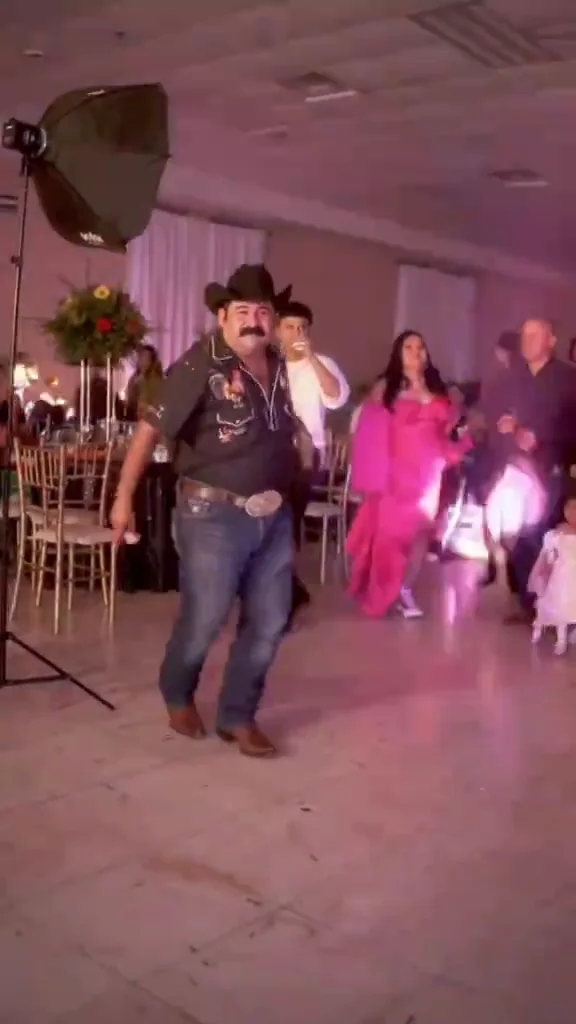
A Dime Dime Baby dance video starts with one photo and a dance template. The generator turns that photo into a vertical dance clip. You do not need to record a dance yourself, but choosing the input carefully gives you a clearer starting point for reviewing the result.
This guide walks through the process from permission to sharing. Generated clips do not include music. You can add available, appropriately licensed audio in the app where you publish.
1. Choose a photo you can use
Use a photo of yourself or an adult who has given permission for this use. Do not upload photos of minors or public figures. Someone agreeing to have their picture taken does not automatically mean they have agreed to an AI dance edit or a public post.
Choose one clearly visible person, with a readable pose and enough space around the body. Avoid photos where another person overlaps the subject or where furniture hides most of the legs. If you are deciding between several pictures, start with our photo selection guide.
2. Compare the dance templates
Open the dance generator and look through the available previews. The template choices are:
- Quince Classic
- Party Groove
- Camera Bounce
- Hand Groove
Use the previews to decide which movement and composition suit your idea. A template name alone cannot tell you how your particular photo will look after generation. Watch the arms, legs, and framing in the preview, then consider whether your input photo makes those body areas easy to distinguish.
For a first attempt, choose one template and keep the original photo available. That makes it easier to compare the result with your starting point.
3. Upload and set an available duration
Upload your chosen photo, select the template, and choose a duration currently available in the generator. Review your selections before submitting. If the interface displays a credit requirement or another purchase condition, read it before proceeding.
Keep the first request focused: one suitable photo, one template, and one duration. Changing several choices between attempts makes it harder to understand what affected the result. Processing time can vary; this guide does not promise a fixed completion time.
4. Review the complete clip
When the generated video is available, watch it from beginning to end. Check more than the opening frame:
- Does the face remain recognizable throughout the movement?
- Do the hands, arms, and legs move in a way you are comfortable sharing?
- Are clothing and background details acceptable?
- Does the framing keep the important movement visible?
AI results can contain visual mistakes. If something looks wrong, identify the specific issue before trying again. For an obscured arm, choose a photo with a clearer arm position. For an unsuitable movement, compare another template preview. Change one input factor at a time and review the next result on its own merits.
5. Prepare to share
Download the finished clip and review the saved file. Add music separately using audio available for your account and intended use in the destination app. A track being popular does not establish permission to use it everywhere.
Use the platform’s AI disclosure tools where available, and describe the clip transparently. Ask the person pictured before posting or tagging them, even if they already permitted generation. Our music and publishing guide covers those final checks.
Dime Dime Baby is an independent fan-made tool. It is not endorsed by any artist, record label, or social platform. Choose a clip you and the person pictured are comfortable sharing; no template or posting choice guarantees reach.