How to Choose the Best Photo for an AI Dance Video
A practical guide to framing, lighting, backgrounds, and visible limbs, with a simple method for improving an AI dance result one input at a time.
 Dime Dime Baby Editorial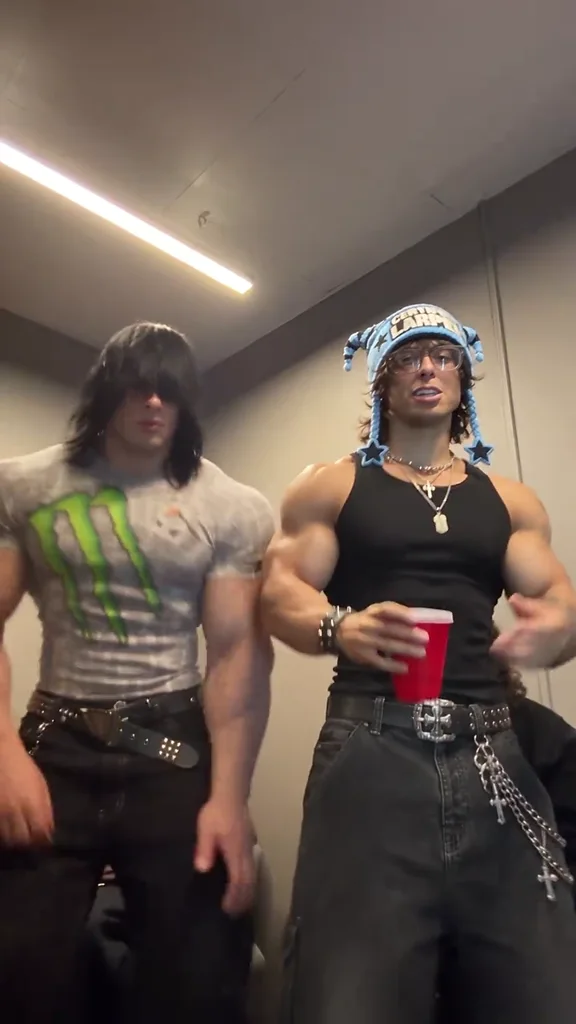
Your source photo determines what the dance generator has to work with. A clear face helps establish identity, while a visible body gives the motion more useful context. A visually appealing portrait is not always the easiest image to animate, especially if the pose hides the hands or crops the legs.
There is no photo choice that guarantees a perfect AI result. The aim is to remove avoidable ambiguity before you submit an image to the dance generator.
Start with permission and one clear subject
Use your own photo or a photo of an adult who has agreed to the generation. Do not upload photos of minors or public figures. Confirm that permission covers an AI dance edit, and discuss public sharing separately.
For the clearest starting point, choose one person who is easy to distinguish from the surroundings. Group pictures, overlapping bodies, and reflections can make it harder to tell which details belong to the intended subject. Crop out unrelated people only if doing so still leaves a useful view of the person you want to animate.
Check the framing and visible limbs
Look for a photo where the subject’s head, arms, and legs are visible, with space around the body. Avoid cutting off hands or feet at the edge of the image. A close headshot supplies little information about the rest of the pose.
Pay attention to overlapping shapes. Arms folded tightly across the chest, hands hidden in pockets, or legs covered by furniture leave important body areas unclear. Loose clothing is not automatically unsuitable, but the position of the limbs should still be reasonably readable.
Before choosing, ask:
- Can I distinguish each arm from the torso?
- Are the legs visible rather than hidden behind an object?
- Is there room around the subject for the composition to remain understandable?
- Does the pose already look clear without zooming in?
These are visual checks, not pixel requirements. Follow any upload requirements actually shown in the interface.
Prefer readable light and a simple background
Choose a well-lit image where the face and body remain visible. Heavy shadow, motion blur, and strong backlighting can obscure details you want the result to retain. More elaborate editing is not necessarily an improvement if it removes useful facial or clothing detail.
A simple background makes the subject easier to inspect. Look for nearby objects that merge visually with the hands, hair, or legs. Also check for private details, such as documents, addresses, or other people, before uploading and before sharing a generated clip.
Diagnose a result before changing the photo
Watch the whole generated clip and name the problem precisely. “The result looks strange” is hard to act on; “the left hand becomes unclear when it crosses the jacket” points to a specific area to inspect.
Use a consistent comparison process:
- Save the original photo and note the chosen template and duration.
- Identify one issue in the generated clip.
- Change one input factor, such as choosing a photo with separated arms.
- Keep the other available choices the same for the comparison.
- Review whether that particular issue improved, without assuming every detail will match.
If the concern is the dance movement itself, compare template previews instead of repeatedly changing unrelated photo details. Generation is probabilistic, so this process supports clearer judgment rather than proving that one adjustment caused every difference.
Use a final photo check
Before submitting, confirm permission, one clear subject, readable light, a visible pose, and an acceptable background. Then follow the beginner dance-video guide to select a template and review the output. Keep expectations practical: a better input helps you evaluate the result, but you should still inspect the complete video before publishing.